一、方式1(直接属性赋值)
1. 原理:子窗体暴露public属性,父窗体持有子窗体实例直接读写,子窗体持有父窗体引用反向写数据;
2. 源码
WinFormDemo1.cs
using System;using System.Windows.Forms;
namespace WinFormDemo{ public class FormChild : Form { public string ReceiveData { get; set; } public FormMain ParentRef { get; set; }
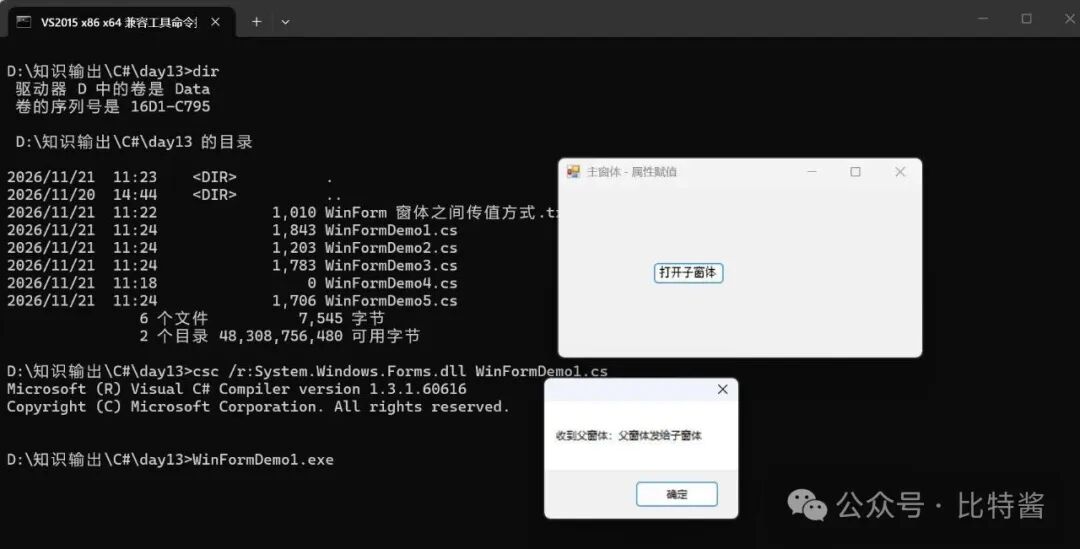
public FormChild() { this.Text = "子窗体 - 属性赋值"; this.Size = new System.Drawing.Size(300, 180); Button btnBack = new Button { Text = "回传数据", Location = new System.Drawing.Point(80, 60) }; btnBack.Click += (s, e) => { if (ParentRef != null) { ParentRef.ResultVal = "子窗体通过属性回传"; } this.Close(); }; this.Controls.Add(btnBack); this.Load += (s, e) => MessageBox.Show("收到父窗体:" + ReceiveData); } }
public class FormMain : Form { public string ResultVal { get; set; } public FormMain() { this.Text = "主窗体 - 属性赋值"; this.Size = new System.Drawing.Size(400, 220); Button btnOpen = new Button { Text = "打开子窗体", Location = new System.Drawing.Point(100, 80) }; btnOpen.Click += (s, e) => { FormChild child = new FormChild(); child.ReceiveData = "父窗体发给子窗体"; child.ParentRef = this; child.ShowDialog(); MessageBox.Show("主窗体收到回写:" + ResultVal); }; this.Controls.Add(btnOpen); }
[STAThread] static void Main() { Application.EnableVisualStyles(); Application.Run(new FormMain()); } }}
3. 编译
csc /r:System.Windows.Forms.dll WinFormDemo1.cs
4. 程序运行效果
二、方式2(构造函数传参,单向初始化)
1. 原理:打开子窗体时,通过构造传入初始数据,子窗体只读,不支持回传;
2. 源码
WinFormDemo2.cs
using System;using System.Windows.Forms;
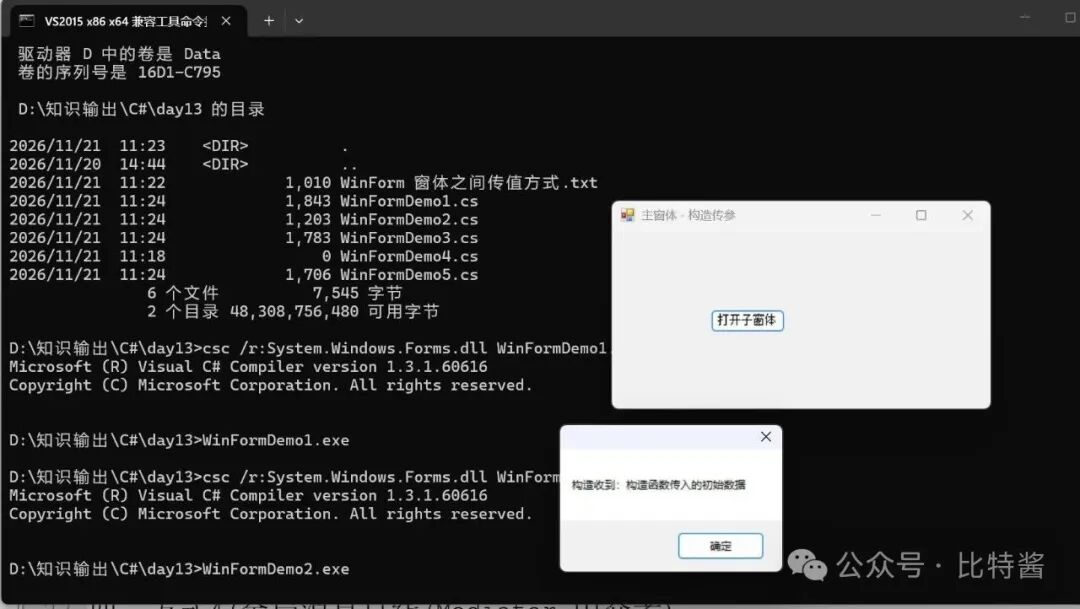
namespace WinFormDemo{ public class FormChild : Form { public string InitMsg { get; } public FormChild(string msg) { InitMsg = msg; this.Text = "子窗体 - 构造传参"; this.Size = new System.Drawing.Size(300, 180); this.Load += (s, e) => MessageBox.Show("构造收到:" + InitMsg); } }
public class FormMain : Form { public FormMain() { this.Text = "主窗体 - 构造传参"; this.Size = new System.Drawing.Size(400, 220); Button btnOpen = new Button { Text = "打开子窗体", Location = new System.Drawing.Point(100, 80) }; btnOpen.Click += (s, e) => { FormChild child = new FormChild("构造函数传入的初始数据"); child.ShowDialog(); }; this.Controls.Add(btnOpen); }
[STAThread] static void Main() { Application.EnableVisualStyles(); Application.Run(new FormMain()); } }}
3. 编译
csc /r:System.Windows.Forms.dll WinFormDemo2.cs
4. 程序运行效果
三、方式3(事件回调)
1. 原理:子窗体定义事件向外抛数据,父窗体订阅事件接收,子窗体不知道是谁订阅(低耦合);
2. 源码
WinFormDemo3.cs
using System;using System.Windows.Forms;
namespace WinFormDemo{ public class FormChild : Form { public delegate void DataReturnHandler(string data); public event DataReturnHandler OnDataReturn;
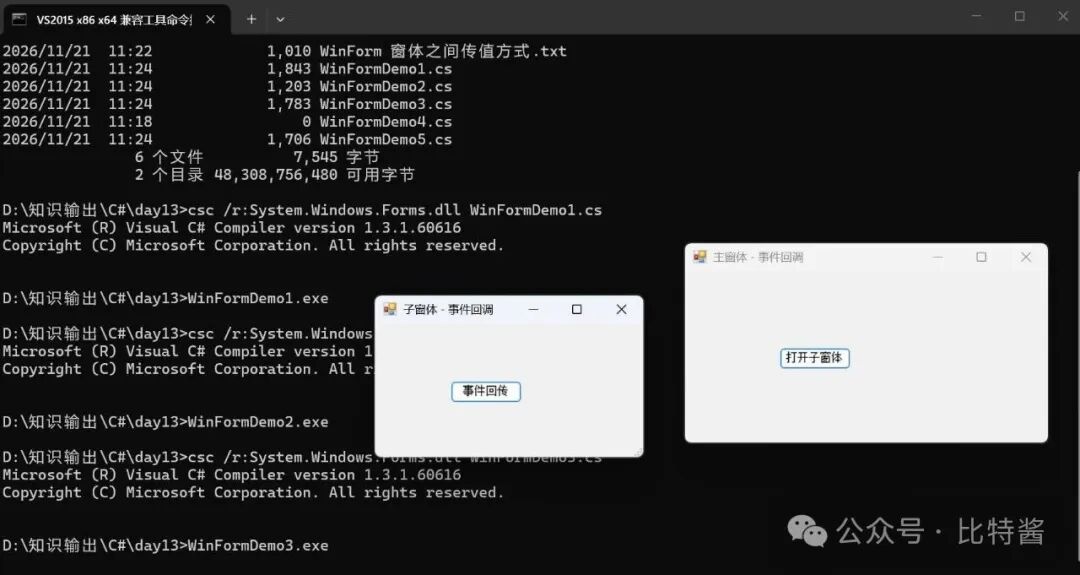
public FormChild() { this.Text = "子窗体 - 事件回调"; this.Size = new System.Drawing.Size(300, 180); Button btnSend = new Button { Text = "事件回传", Location = new System.Drawing.Point(80, 60) }; btnSend.Click += (s, e) => { OnDataReturn?.Invoke("子窗体通过事件回传内容"); this.Close(); }; this.Controls.Add(btnSend); } }
public class FormMain : Form { public FormMain() { this.Text = "主窗体 - 事件回调"; this.Size = new System.Drawing.Size(400, 220); Button btnOpen = new Button { Text = "打开子窗体", Location = new System.Drawing.Point(100, 80) }; btnOpen.Click += (s, e) => { FormChild child = new FormChild(); child.OnDataReturn += Child_OnDataReturn; child.ShowDialog(); child.OnDataReturn -= Child_OnDataReturn; }; this.Controls.Add(btnOpen); }
private void Child_OnDataReturn(string msg) { MessageBox.Show("主窗体收到事件:" + msg); }
[STAThread] static void Main() { Application.EnableVisualStyles(); Application.Run(new FormMain()); } }}
3. 编译
csc /r:System.Windows.Forms.dll WinFormDemo3.cs
4. 程序运行效果
四、方式4(全局消息总线/Mediator 中介者)
1. 原理:独立单例消息中心,发布者、订阅者互不感知,适合多窗体广播;
2. 源码
WinFormDemo4.cs
using System;using System.Collections.Generic;using System.Windows.Forms;
public static class MessageBus{ private static readonly Dictionary<Type, Delegate> _subscribers = new Dictionary<Type, Delegate>();
public static void Subscribe<T>(Action<T> handler) { Type t = typeof(T); if (!_subscribers.ContainsKey(t)) { _subscribers[t] = handler; } else { _subscribers[t] = Delegate.Combine(_subscribers[t], handler); } }
public static void UnSubscribe<T>(Action<T> handler) { Type t = typeof(T); if (_subscribers.ContainsKey(t)) { Delegate d = Delegate.Remove(_subscribers[t], handler); if (d == null) _subscribers.Remove(t); else _subscribers[t] = d; } }
public static void Publish<T>(T message) { Type t = typeof(T); if (_subscribers.ContainsKey(t)) { Action<T> action = _subscribers[t] as Action<T>; if (action != null) action(message); } }}
public class TextMsg{ public string Content { get; set; }}
public class Form1 : Form{ private Button btnOpen; private Label lblRecv;
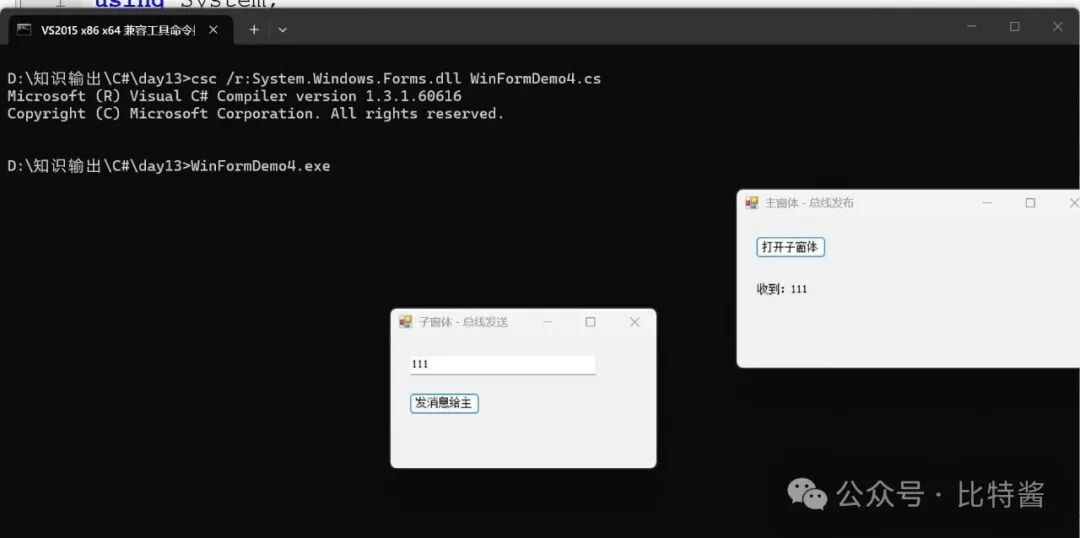
public Form1() { this.Text = "主窗体 - 总线发布"; this.Size = new System.Drawing.Size(400, 200); btnOpen = new Button { Text = "打开子窗体", Location = new System.Drawing.Point(20, 20) }; lblRecv = new Label { Text = "等待消息...", Location = new System.Drawing.Point(20, 70), AutoSize = true }; this.Controls.Add(btnOpen); this.Controls.Add(lblRecv);
MessageBus.Subscribe<TextMsg>(OnMsg); btnOpen.Click += (s, e) => { Form2 f2 = new Form2(); f2.Show(); }; }
private void OnMsg(TextMsg msg) { if (lblRecv.InvokeRequired) { lblRecv.Invoke(new Action(() => OnMsg(msg))); return; } lblRecv.Text = "收到:" + msg.Content; }
protected override void Dispose(bool disposing) { if (disposing) { MessageBus.UnSubscribe<TextMsg>(OnMsg); } base.Dispose(disposing); }}
public class Form2 : Form{ private TextBox txtInput; private Button btnSend;
public Form2() { this.Text = "子窗体 - 总线发送"; this.Size = new System.Drawing.Size(300, 180); txtInput = new TextBox { Location = new System.Drawing.Point(20, 20), Width = 200 }; btnSend = new Button { Text = "发消息给主窗体", Location = new System.Drawing.Point(20, 60) }; this.Controls.Add(txtInput); this.Controls.Add(btnSend);
btnSend.Click += (s, e) => { if (!string.IsNullOrEmpty(txtInput.Text)) { MessageBus.Publish(new TextMsg { Content = txtInput.Text }); } }; }}
static class Program{ [STAThread] static void Main() { Application.EnableVisualStyles(); Application.SetCompatibleTextRenderingDefault(false); Application.Run(new Form1()); }}
3. 编译
csc /r:System.Windows.Forms.dll WinFormDemo4.cs
4. 程序运行效果
五、方式5(静态变量传值)
1. 原理:静态类共享数据,所有窗体直接读写静态字段;
2. 源码
WinFormDemo5.cs
using System;using System.Windows.Forms;
namespace WinFormDemo{ public static class GlobalShare { public static string TextData { get; set; } }
public class FormChild : Form { public FormChild() { this.Text = "子窗体 - 静态变量"; this.Size = new System.Drawing.Size(300, 180); this.Load += (s, e) => MessageBox.Show("读取静态变量:" + GlobalShare.TextData); Button btnModify = new Button { Text = "修改静态变量", Location = new System.Drawing.Point(60, 60) }; btnModify.Click += (s, e) => { GlobalShare.TextData = "子窗体修改静态值"; this.Close(); }; this.Controls.Add(btnModify); } }
public class FormMain : Form { public FormMain() { this.Text = "主窗体 - 静态变量"; this.Size = new System.Drawing.Size(400, 220); Button btnOpen = new Button { Text = "打开子窗体", Location = new System.Drawing.Point(100, 80) }; btnOpen.Click += (s, e) => { GlobalShare.TextData = "主窗体写入静态数据"; FormChild child = new FormChild(); child.ShowDialog(); MessageBox.Show("静态变量最新:" + GlobalShare.TextData); }; this.Controls.Add(btnOpen); }
[STAThread] static void Main() { Application.EnableVisualStyles(); Application.Run(new FormMain()); } }}
3. 编译
csc /r:System.Windows.Forms.dll WinFormDemo5.cs
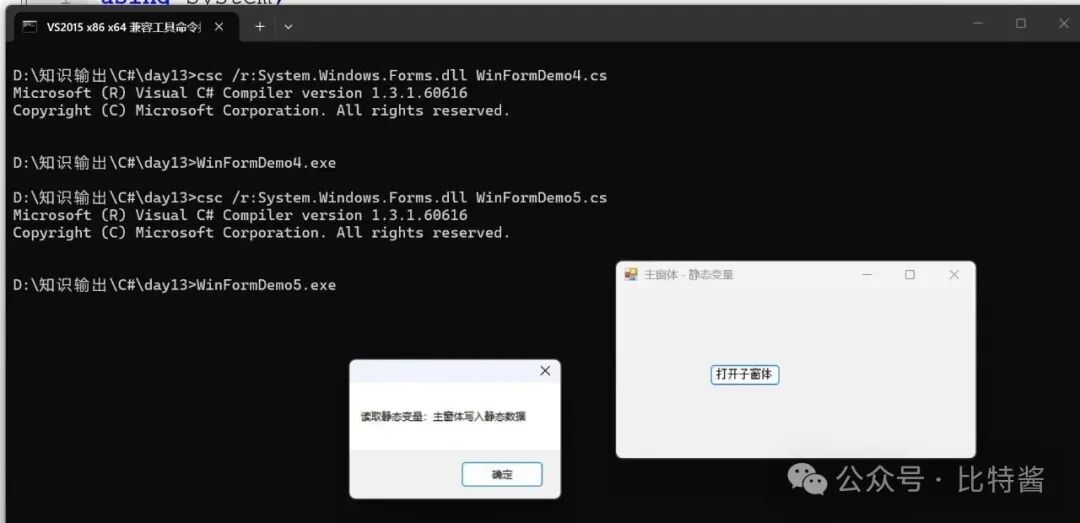
4. 程序运行效果
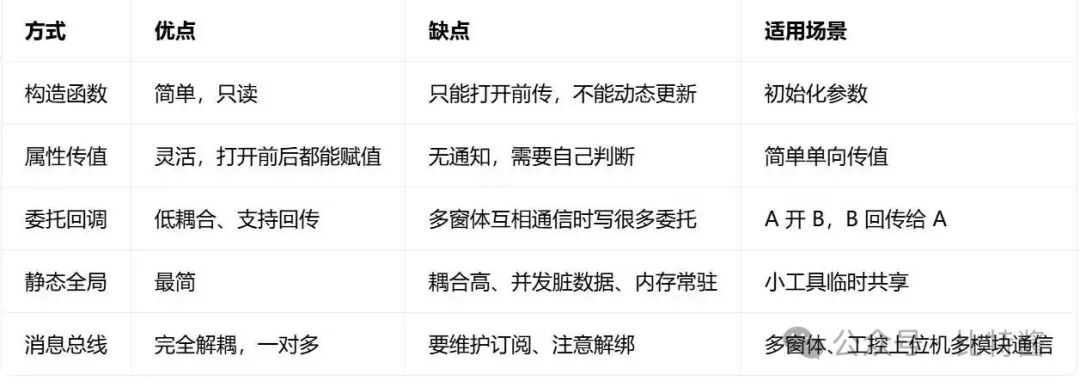
六、几种方式对比
阅读原文:原文链接
该文章在 2026/11/27 11:41:25 编辑过






 400 186 1886